Cash flow options
The Cash Flow options are used to define the cash flow rules needed to calculate the finance expense and cash flow for your project. To open the Cash Flow options, click on the Cash Flow Options icon in the Tools section of the Actions tab.
You can also access Cash Flow Options from the Setup > Job Properties > Cash Flow tab.
Cash flow rules describe how cash flow occurs between a contractor and a client, and between contractors or owners and vendors/subcontractors. Cash flow is then calculated based on both the earning and payment terms you specify, and the job's schedule and pay item prices.
To include any of your costs in your cash flow (including indirect costs), they need to be scheduled
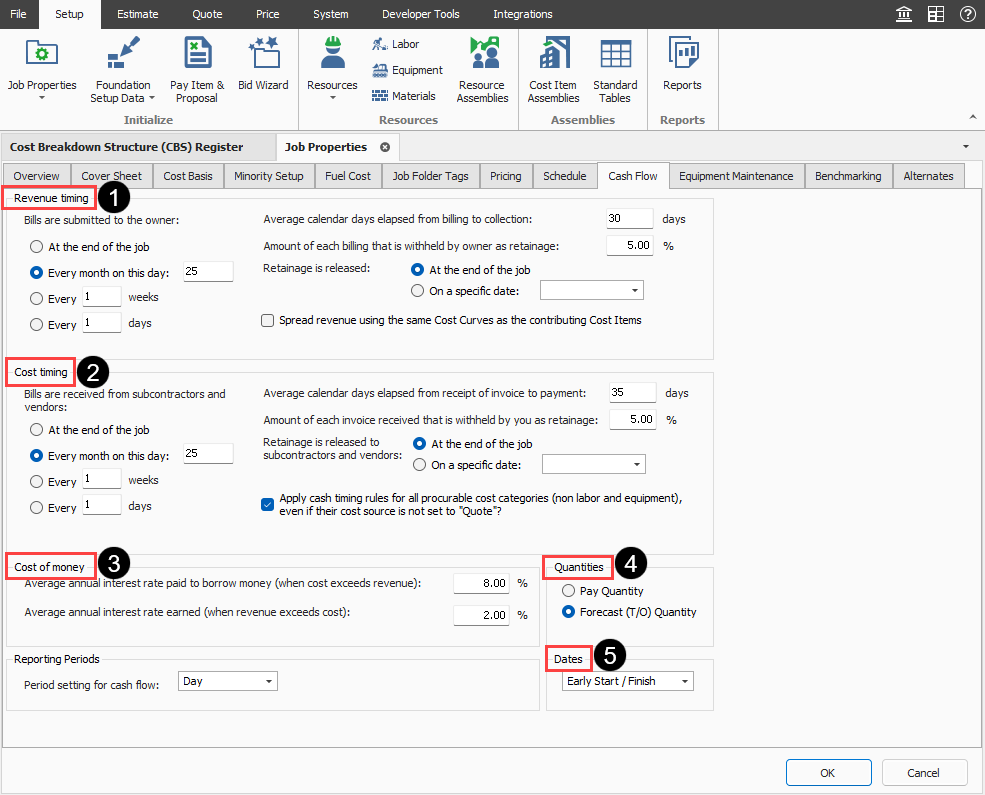
The image and table below shows an overview of the cash flow rules.
| |
Cash flow rule |
Description |
| 1 |
Revenue timing |
Represents the financing cost to fund the project. This section contains fields to specify interest rates you pay for the money you borrow, and interest rates you earn for money invested, to determine a total Finance Cost. |
| 2 |
Cost timing |
Cost is the amount of money expended to complete the scope of the project. This section contains options to specify when and how often you pay contractors, subcontractors and vendors.
|
| 3 |
Cost of money |
Represents the financing cost to fund the project. This section contains fields to specify interest rates you pay for the money you borrow, and interest rates you earn for money invested, to determine a total Finance Cost. |
| 4 |
Quantities |
Allows you to calculate cash flow based on pay quantities or forecast (T/O) quantities. |
| 5 |
Dates |
By default, the scheduled Early Start and Early Finish dates of each cost item (and its resource employments) as listed in the CBS Register, provide the timing of the expenses, revenue, and costs that show up on the Cash Flow graph. You have the option to base cash flow timing on Start/Finish dates or Late Start/Finish dates.
|
Cash flow options configuration
-
On your job, from the Estimate tab, select Setup >Job Properties >Cash Flow.
-
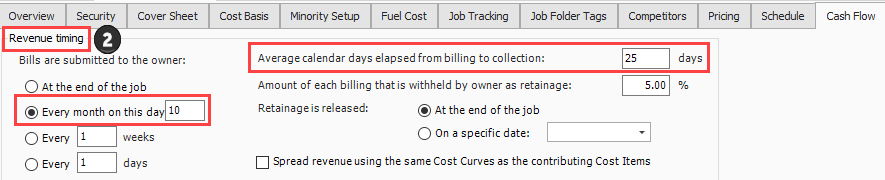
You can change your Revenue timing. For example, you can change to Every month on the 10th.
-
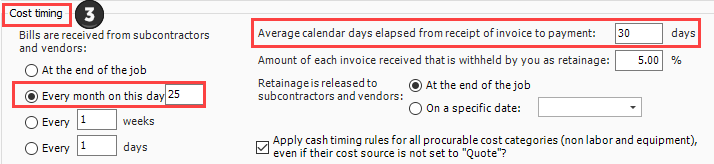
For Cost timing, bills are received from subcontractors and vendors Every month on the 25th.
-
You can update the Cost of money values. For example, you can enter 10% for the Average annual interest rate paid to borrow money (when cost exceeds revenue) and 2% for Average annual interest rate earned (when revenue exceeds cost).
-
You have the option of updating all other values or leave the default values. .